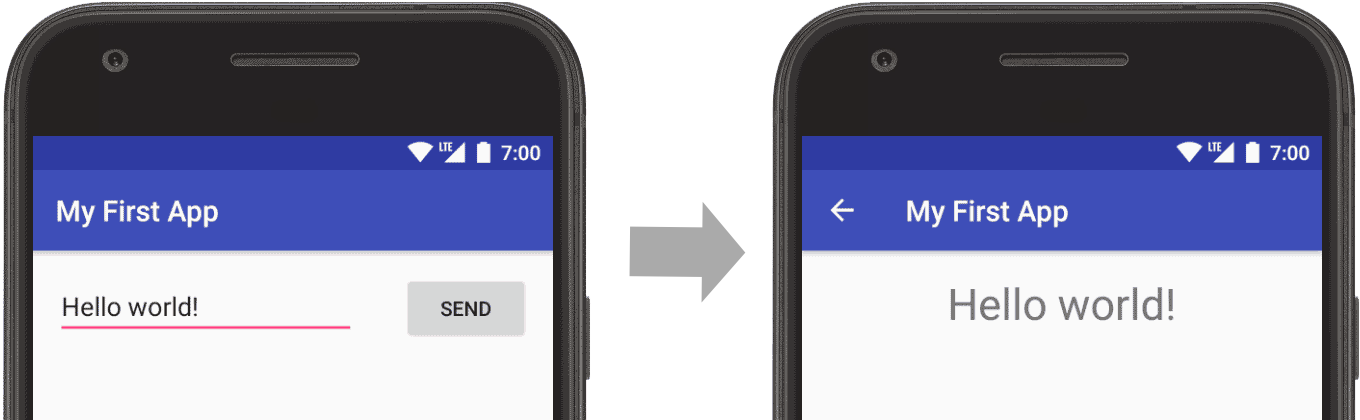
The user interface for an Android app is built using a hierarchy of:
Layouts (ViewGroup objects) are invisible containers that control how its child views are positioned on the screen.
Widgets (View objects) are UI components such as buttons and text boxes.

MainActivity
gr.nezis.myfirstapp;

import android.content.Intent;
import android.support.v7.app.AppCompatActivity;
import android.os.Bundle;
import android.view.View;
import android.widget.EditText;


public class MainActivity extends AppCompatActivity {


    public static final String EXTRA_MESSAGE = "com.example.myfirstapp.MESSAGE";


   /* ΥΠΕΡΦΟΡΤΩΣΗ
    Μια κλάση μπορεί να αλλάξει τη συμπεριφορά μιας μεθόδου που αλλιώς θα
    κληρονομούσε απο υπερκλάση της, ορίζοντάς την με το ίδιο όνομα, τα ίδια ορίσματα,
    τον ίδιο τύπο και το σώμα που επιθυμεί ο χρήστης. (Αρκεί να μην έχει χαρακτηριστεί ως final).
    Παράδειγμα
        class Triangle {
            public String whoIAm() { return "I am a triangle"; }
            }
        class EquilateralTriangle extends Triangle {
        @Overrride
        public String whοΙAm() { return "I am an equilateral triangle"; }
    */

    @Override // υπερφόρτωση ιδιότητων και μεθόδων της βασικής κλάσης
    protected void onCreate(Bundle savedInstanceState) {

        // call the super class onCreate to complete the creation of activity like the view hierarchy
        super.onCreate(savedInstanceState);

        // set the user interface layout for this Activity
        // the layout file is defined in the project res/layout/main_activity.xml file
        setContentView(R.layout.activity_main);
    }


    public void sendMessage(View view) {
        // Do something in response to button

        /*The Intent constructor takes two parameters:
        A Context as its first parameter (this is used because the Activity class is a subclass of Context)
        The Class of the app component to which the system should deliver the Intent (in this case, the activity that should be started).*/

        Intent intent1 = new Intent(this, DisplayMessageActivity.class);


        /*
        The putExtra() method adds the EditText's value to the intent. An Intent can carry data types as key-value pairs called extras
        Your key is a public constant EXTRA_MESSAGE because the next activity uses the key to retrieve the text value.
        It's a good practice to define keys for intent extras using your app's package name as a prefix. This ensures the keys are unique, in case your app interacts with other apps.
         */
        EditText editText = (EditText) findViewById(R.id.editText2);
        String message = editText.getText().toString();
        intent1.putExtra(EXTRA_MESSAGE, message);

        //The startActivity() method starts an instance of the DisplayMessageActivity specified by the Intent
        startActivity(intent1);

    }


}
package gr.nezis.myfirstapp;

import android.content.Intent;
import android.support.v7.app.AppCompatActivity;
import android.os.Bundle;
import android.widget.TextView;

public class DisplayMessageActivity extends AppCompatActivity {

    @Override
    protected void onCreate(Bundle savedInstanceState) {
        super.onCreate(savedInstanceState);
        setContentView(R.layout.activity_display_message);

        // Get the Intent that started this activity and extract the string
        Intent intent = getIntent();
        String message = intent.getStringExtra(MainActivity.EXTRA_MESSAGE);

        // Capture the layout's TextView and set the string as its text
        TextView textView = findViewById(R.id.textView);
        textView.setText(message);


    }
}